In addition to requesting documents through SafeSend, we’ll also be using the platform to send engagement letters and tax returns for electronic signatures. This will give you a convenient way to review and sign the documents we send without needing to print, sign, and return them manually. The process is straightforward, and we’ll walk you through the steps to help you get started.
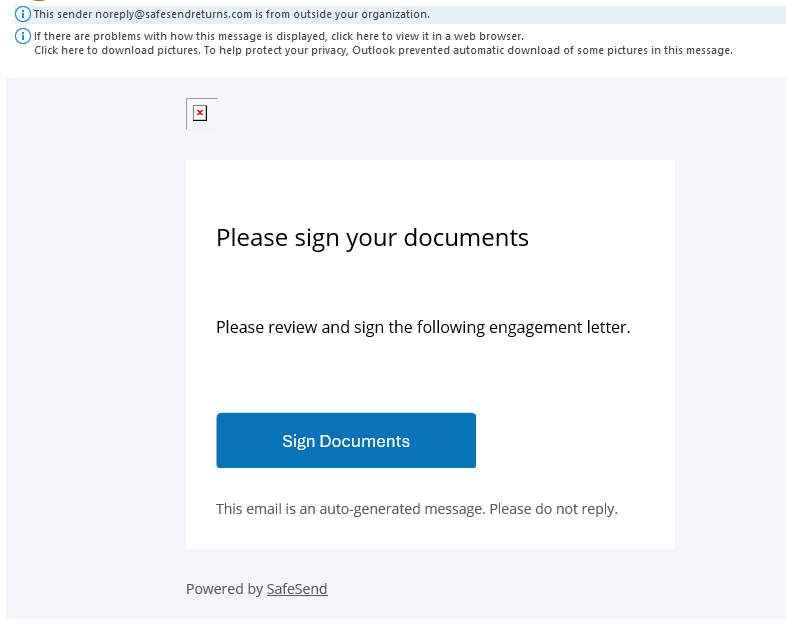
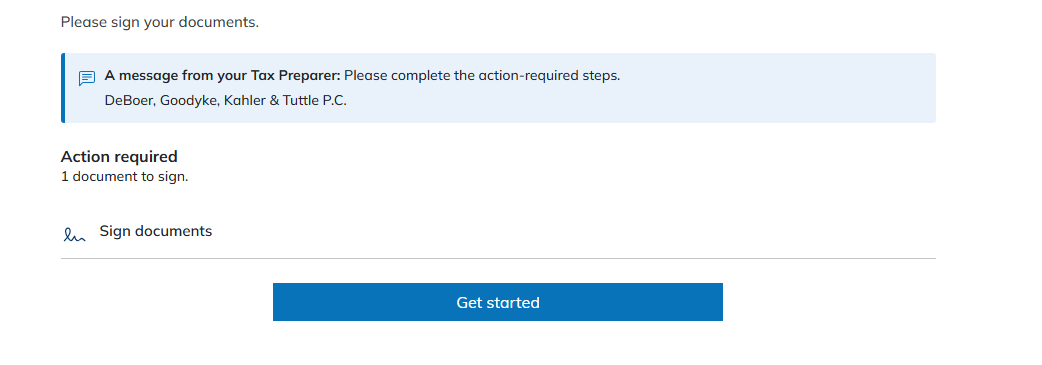
1. When your documents are ready for your signature, you’ll receive an email from SafeSend notifying you that action is needed. To get started, simply open the email and click the “Sign Documents” button. This will take you directly to the documents that need your review and signature, allowing you to begin the process.
2. After clicking “Sign Documents,” a new page will open in SafeSend. You’ll see a prompt guiding you to begin the signing process. Simply follow the instructions on the screen to get started and access the documents that require your signature.
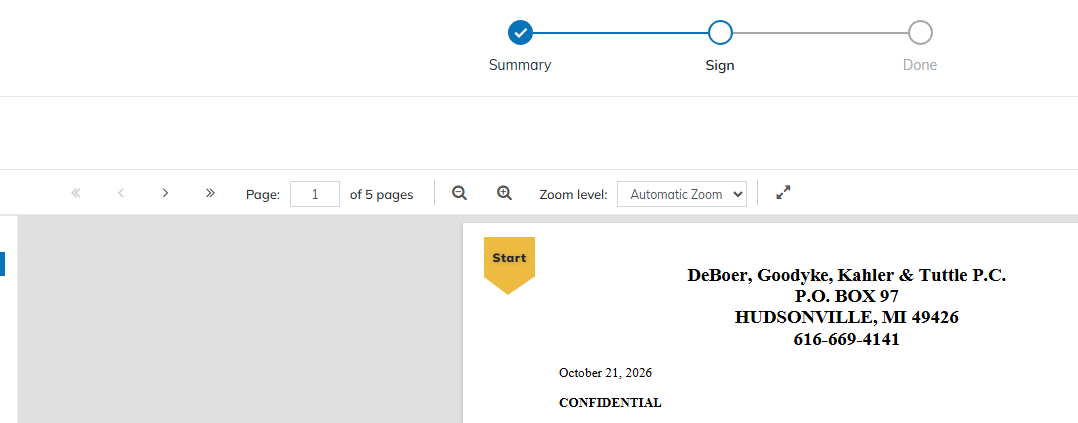
3. Once you’ve started the process, your documents will appear on the screen for you to review and sign. In the upper-left corner, you’ll see a “Start” button. Click this button to begin navigating through your documents. SafeSend will guide you through the signing process, making it easy to locate where your signature is needed. After clicking “Start,” you’ll be taken to the next step.
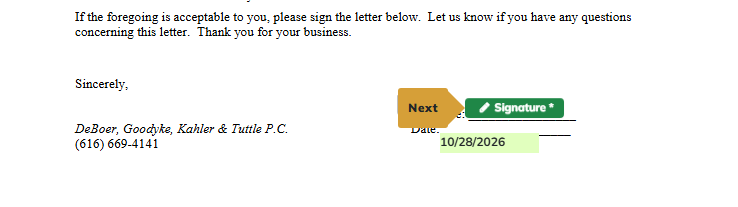
4. When you reach the engagement letter, you’ll be prompted to add your signature. Simply click on the signature field, and a box will pop up asking you to type your name. Once you enter your name, SafeSend will generate a cursive-style signature for you to review and confirm. After your signature has been confirmed, click the “Next” button to proceed to the next step in the signing process.
5. After confirming your signature and clicking “Next,” you’ll be brought to a screen where you’ll need to add your initials. Similar to your signature, simply click on the initials field and follow the prompts to enter and confirm your initials. Once you’ve completed this step, click “Next” to continue through the signing process.

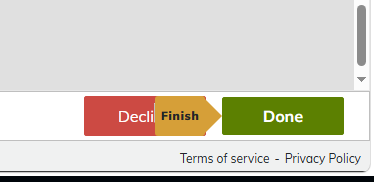
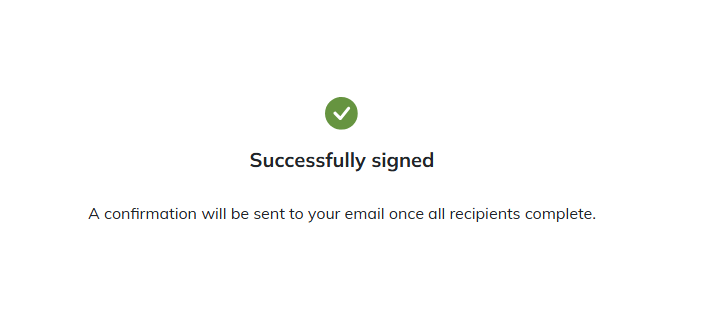
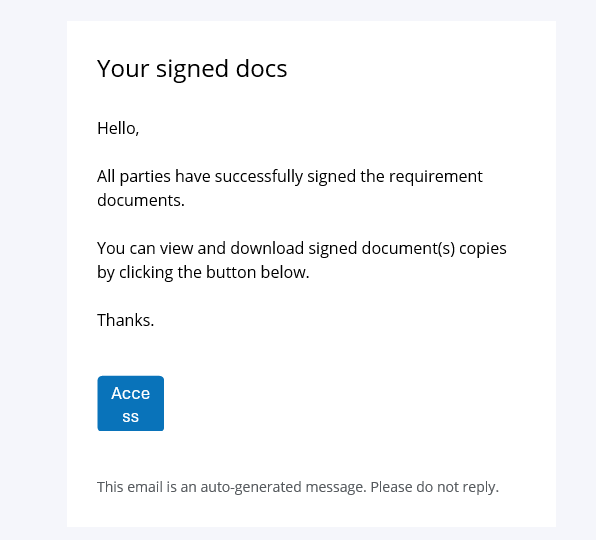
6. You’re almost done! Once you’ve completed all the required signatures and initials, you’ll be brought to the final screen. Look for the “Finish” button and click it to finalize the signing process. Once you’ve clicked “Finish,” you’re all set! You’ll receive a confirmation email letting you know the signing process is complete. If you’d like to keep a copy for your records, you can also access your signed documents through the confirmation email and download them at your convenience.