Requesting Signatures Through SafeSend

In addition to requesting documents through SafeSend, we’ll also be using the platform to send engagement letters and tax returns for electronic signatures. This will give you a convenient way to review and sign the documents we send without needing to print, sign, and return them manually. The process is straightforward, and we’ll walk you through the steps to help you get started.


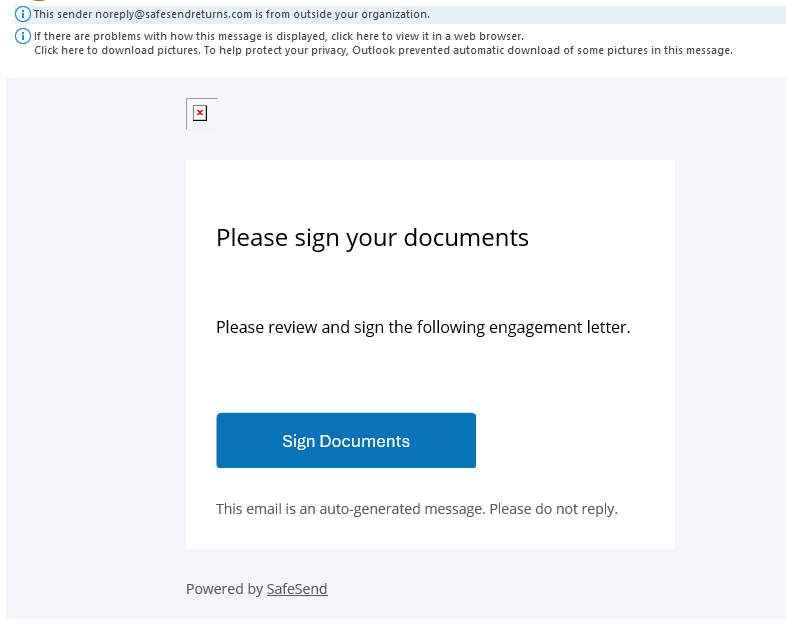
1. When your documents are ready for your signature, you’ll receive an email from SafeSend notifying you that action is needed. To get started, simply open the email and click the “Sign Documents” button. This will take you directly to the documents that need your review and signature, allowing you to begin the process.
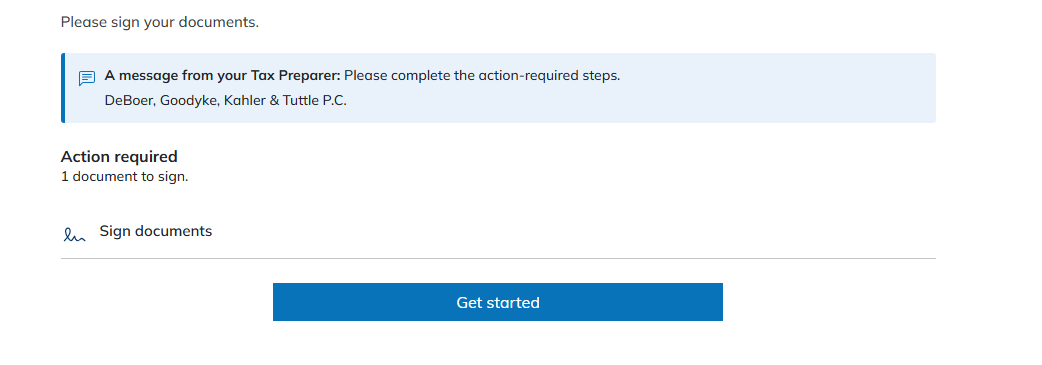
2. After clicking “Sign Documents,” a new page will open in SafeSend. You’ll see a prompt guiding you to begin the signing process. Simply follow the instructions on the screen to get started and access the documents that require your signature.
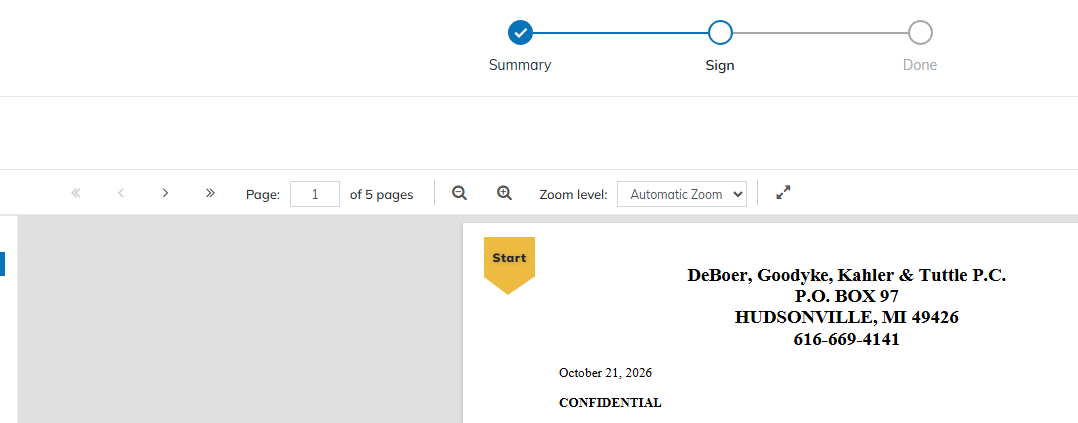
3. Once you’ve started the process, your documents will appear on the screen for you to review and sign. In the upper-left corner, you’ll see a “Start” button. Click this button to begin navigating through your documents. SafeSend will guide you through the signing process, making it easy to locate where your signature is needed. After clicking “Start,” you’ll be taken to the next step.
4. When you reach the engagement letter, you’ll be prompted to add your signature. Simply click on the signature field, and a box will pop up asking you to type your name. Once you enter your name, SafeSend will generate a cursive-style signature for you to review and confirm. After your signature has been confirmed, click the “Next” button to proceed to the next step in the signing process.
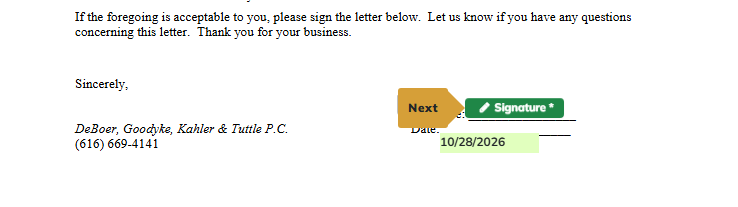
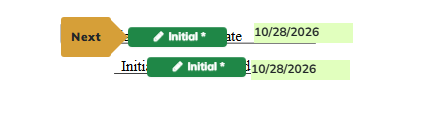
5. After confirming your signature and clicking “Next,” you’ll be brought to a screen where you’ll need to add your initials. Similar to your signature, simply click on the initials field and follow the prompts to enter and confirm your initials. Once you’ve completed this step, click “Next” to continue through the signing process.
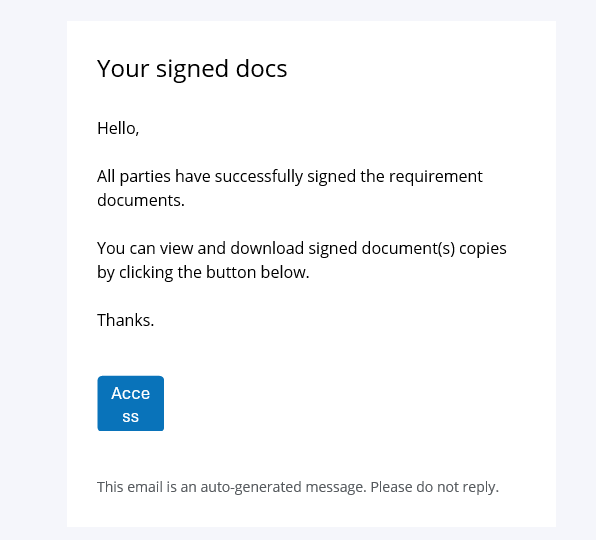
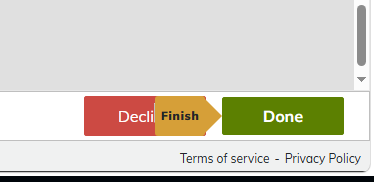
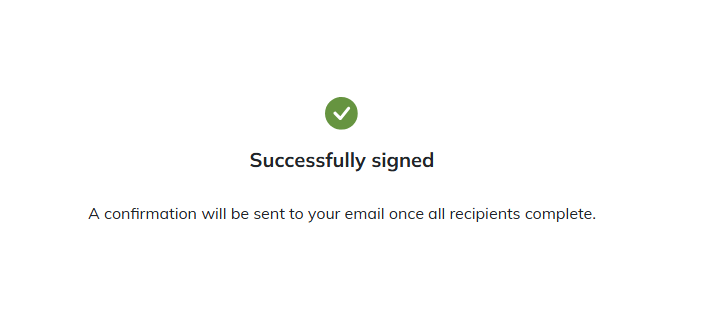
6. You’re almost done! Once you’ve completed all the required signatures and initials, you’ll be brought to the final screen. Look for the “Finish” button and click it to finalize the signing process. Once you’ve clicked “Finish,” you’re all set! You’ll receive a confirmation email letting you know the signing process is complete. If you’d like to keep a copy for your records, you can also access your signed documents through the confirmation email and download them at your convenience.
Uploading Documents Through SafeSend

We’re excited to announce that we’re transitioning to SafeSend for requesting and collecting documents! This new platform will help streamline the document-gathering process, making it easier and more convenient for you to securely send us the information we need.

We understand that switching to a new platform can take some getting used to, so we’re putting together a step-by-step guide to walk you through the process. Our goal is to make this transition as smooth as possible by providing clear instructions and helpful visuals so you know exactly what to expect and how to submit your documents.

As we make this transition, you may notice some changes in how you receive and respond to document requests from our office. We appreciate your patience as we implement this new system and look forward to making the document-gathering process simpler, more secure, and more efficient for everyone!


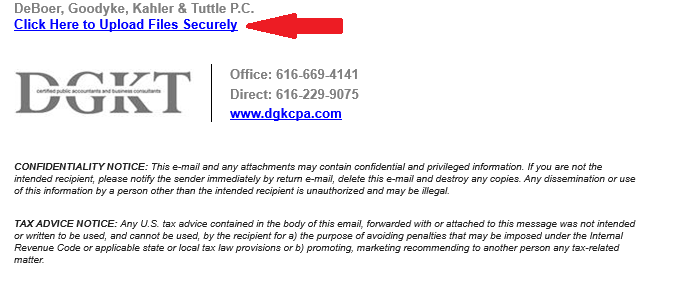
1. Getting started is easy! Open the email you received requesting documents and scroll down to the footer at the bottom of the email. You’ll find a link that will take you directly to SafeSend, where you can access your document request and begin uploading the necessary files. Simply click the link to get started!

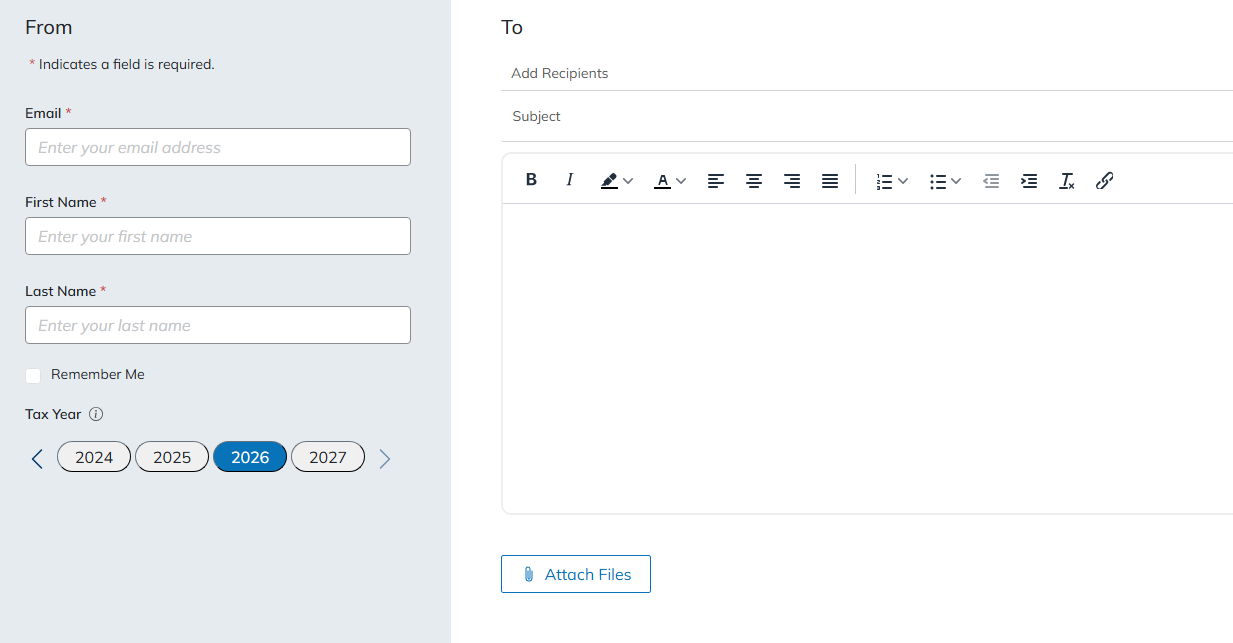
2. Once you arrive at the SafeSend page, you’ll be prompted to fill out a few basic fields before submitting your documents. The recipient’s email address will already be populated with the person who sent you the original document request, so you won’t need to enter that information yourself. Next, enter your own email address, first and last name, and a subject line for your email. You’ll also be required to include a message before you can submit your documents. This can be a simple note letting us know you’re sending your requested documents. Finally, attach the files you need to send by selecting them from your computer. Once all required fields are completed and your documents are attached, you’ll be ready for the next step!

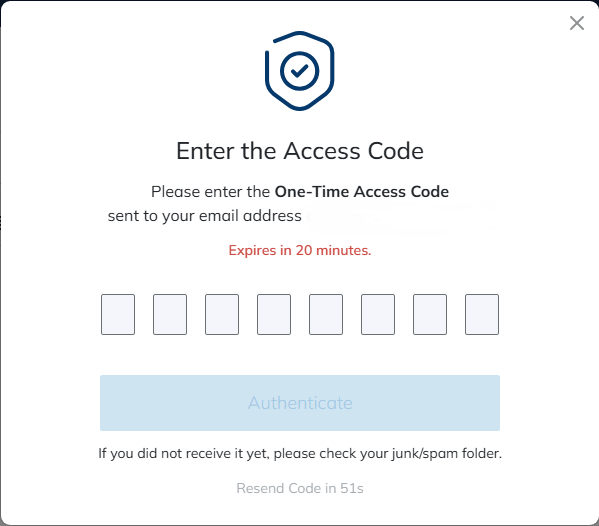
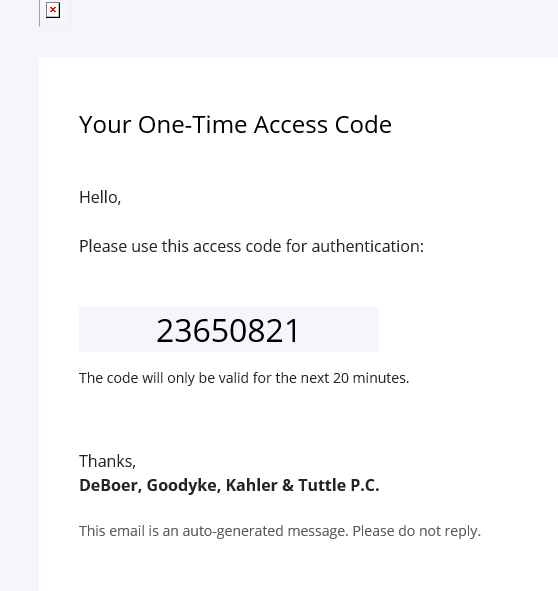
3. After completing the form and attaching your documents, SafeSend will send a verification code to the email address you entered. Check your inbox for an email containing the code, then return to SafeSend and enter the code when prompted. This step helps verify your identity and keep your document submission secure. If you don’t see the email right away, be sure to check your junk or spam folder. Once you’ve entered the verification code, you’ll be ready to move forward with submitting your documents!

4. Once you’ve entered the verification code and authenticated your email, you’re all done! Your documents will be securely sent to our office through SafeSend. There’s nothing else you need to do. We appreciate your time and patience as we transition to this new platform, and we hope this makes sending documents to our office easier and more convenient. If you have any questions or run into any issues along the way, please don’t hesitate to reach out to us!